- Click Start > All Programs > Pervasive > Pervasive.SQL Control Center.
- In the Common Tasks section in the right panel, click New Database. The New Database window opens.
- In the Server field, click the down arrow, select a server from the list, and then click Next.
- In the Database Name field, type the name of the folder you created for the database. Note: The folder name and the database name must be identical.
- In the Location field, type the path to the folder you created for the database.
- In the DBName Options section, select Bound and Create Dictionary Files. Do not select the option, Relational Integrity Enforced, as Sage Accpac checks integrity.
- Select the Create DSN option, and leave Normal as the Open Mode. Note: The DSNs are used in Database Setup when you set up your system and company databases.
- Click Finish.
- Create other databases (for example, if you created a system database, now create a company database).
- Close the Pervasive.SQL Control Center.
Wednesday, 7 July 2010
Create Databases and Datasource Names (DSNs) in Pervasive.SQL
To create company and system databases in Pervasive.SQL:

Wednesday, 30 June 2010
A short video on what's coming in Sage ERP Accpac V6.0
Here is link to a video on what's Sage Accpac 6.0 will look like. There are several new feature in this version release of Accpac(As mention in Sage Accpac blogs)
- A new personalized Portal – which makes it a lot easier for users to find and navigate to the screens they need.
- Snapshots – which provide information on key performance indicators (KPI) for financial managers, such as income statement and balance sheets, aged payables and receivables, and days outstanding payables and receivables.
- Inquiry – which allows any user of Sage Accpac to quickly create “ad hoc” queries to get lists of information out of GL, AR and AP (reducing the need to have to customize Crystal Reportrs!)
- SageCRM Integration – designed from a sales person’s point of view, the SageCRM integration is now “seamless” and makes it much easier for sales people to create quotes and orders.
- And, last but not least, the ability the lock fiscal periods by module. This is a highly requested enhancement by user
Tuesday, 29 June 2010
Pre Installation Check for upgrade To Sage Accpac 56
Before upgrading process take place, It's better get to know first what need to be done in order to have a successful upgrade of Accpac :
1. Check for hardware and system requirement
For Server :
Database :
Workstation:
2. Run The following Task :
Good luck and don't forget one more important part "Pray" :D
1. Check for hardware and system requirement
For Server :
- Windows 2003 Server SP 2
- Windows 2008 Server
Database :
- Pervasive 9.7(32bit)
- Pervasive 10.2(32bit&64bit)
- Microsoft SQL 2005 SP 3(32bit & 64bit)
- Microsoft SQL 2008 (32bit & 64bit)
Workstation:
- Windows XP SP 3
- Windows Vista
- Windows 7
2. Run The following Task :
- Post transactions in Project and Job Costing (if you are upgrading from version 5.3 or 5.4).
- Invoice any partially invoiced P/O receipts that included serialized or lotted items.
- Run Day End Processing (if you use Inventory Control).
- Post any open batches in Accounts Receivable and Accounts Payable.
- Post bank reconciliations, create a G/L batch in Bank Services, and clear the Bank Reconciliation Posting Journal. (The Update Notice contains additional important information about this task.)
- Post any open G/L batches in General Ledger.
- Deactivate any Sage Accpac Options (UniDevCo) products you used with the previous version.
- Back up your company data.
- Perform Database Dumps of IBM DB2 Data (if you used DB2 in the previous version).
Good luck and don't forget one more important part "Pray" :D
Wednesday, 26 May 2010
Ops Inquiry 56
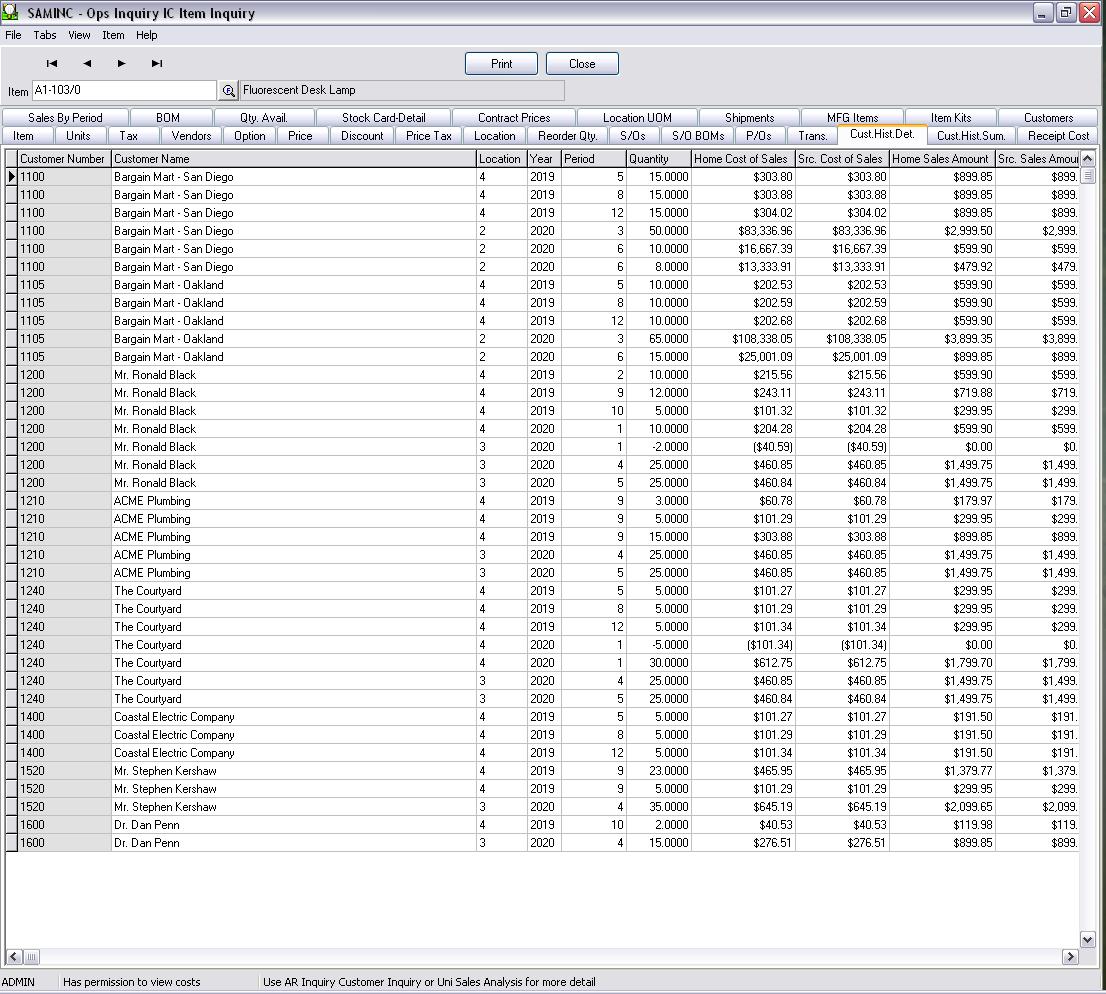
With the release of 56. Ops inquiry is now part of Accpac, which means another FREE module has been incorporated into core accpac. Ops inquiry give you the ability to check and view all information regarding an item starting from first it was created, received and shipped out. All into 1 single screen. It also give the ability to preview sales or purchase information
Below are some screen shot from the ops inquiry module :


Below are some screen shot from the ops inquiry module :


Tuesday, 27 April 2010
Export Import in CB56

Dreaming/hoping for a better way to manage transaction in Cashbook? Where you have hundreds of transactions need to be recorded from branch or transaction recorded from other 3rd party system. And you're dream is coming true!
Cashbook 56 provide the ability to Export/Import Transaction Just like what Accpac has been doing. And now this Feature is build in to 56. And there are more to come stay tuned for the latest update on Cashbook 56.
Tuesday, 6 April 2010
What Windows Operating Systems Are Supported For Pervasive.SQL 10.2 and 10.3?
For the Pervasive.SQL 'Server' for Windows edition, X64(64bit) and X86(32bit) platforms are available. Both platforms have been tested and are supported with the following Windows operating Systems:
Windows Vista (Requires SP1 for v10)
- Enterprise x86 and x64 Editions
- Ultimate x86 and x64 Editions
- Business x86 and x64 Editions
Windows 7
- Professional
- Ultimate
- Enterprise
Windows Server 2003
- R2 Server x64 Edition
- R2 Server and Small Business Server
- R2 Server, Small Business Server, and Failover Cluster
- R2 Server Terminal Services
- Server x64 Edition (SP 2)
- Server and Small Business Server (SP 2)
- Server, Small Business Server (SP 2), and Failover Cluster
- Server Terminal Services (SP 2)
Windows Server 2008
- Web Server x86 and x64 Editions
- Datacenter x86 and x64 Editions
- Enterprise x86 and x64 Editions
- Standard x86 and x64 Editions
Windows Small Business Server 2008
- Standard and Premium Editions x64
For the Pervasive.SQL 'Workgroup' for Windows edition, this platform is only available in X86(32bit). This edition has been tested and is supported with the following Windows operating systems:
Windows XP
- Professional 64-bit Edition (SP 2)
- Professional and Home Edition (SP3)
- Window XP Embedded (SP1), and Embedded for Point of Service
Windows Vista (Requires SP1 for v10)
- Enterprise x86 and x64 Editions
- Ultimate x86 and x64 Editions
- Business x86 and x64 Editions
- Home Premium x86 and x64 Editions
- Home Basic x86 and x64 Editions
Windows 7
- Home Premium
- Professional
- Ultimate
- Enterprise
Windows Server 2003
- R2 Server x64 Edition
- R2 Server and Small Business Server
- R2 Server Terminal Services
- Server x64 Edition (SP 2)
- Server and Small Business Server (SP 2)
Windows Server 2008
- Web Server x86 and x64 Editions
- Datacenter x86 and x64 Editions
- Enterprise x86 and x64 Editions
- Standard x86 and x64 Editions
Windows Small Business Server 2008
- Standard and Premium Editions x64
Thursday, 25 February 2010
Sage Accpac 56 is released
For Our Beloved Sage Accpac Indonesia Customer. Sage Accpac 56 has been released with lot of new features. Call us or email us to get more information about what 56 is about. Here are some quote from the release of Sage Accpac :
"As the world of business is constantly evolving, so must your business management
software. At Sage, we work to continually improve your experience with Sage Accpac
Integrated Suite and develop new functionality to help you get more out of your solution.
We work directly with our extensive customer base (over 45,000 companies and 200,000
users) to ensure our products work the way you do to improve processes and enhance
productivity. Over the past year, over 5,000 customers and partners worldwide have
been consulted through on-site visits, surveys, interviews, and observational studies in
our state-of-the-art usability laboratories. The results of this rigorous research are poured
into the product development process to help us design and build better software.
The key enhancements developed in Version 5.6 will help to automate workfl ow and
reduce costs throughout your organization, helping you accomplish more in less time.
How you can get your hands on all of the dynamic new features packed into this version?
Great news! You are entitled to software upgrades and maintenance updates as part of
your Sage Cover plan. Need to renew your plan?"call us at 7660349
"As the world of business is constantly evolving, so must your business management
software. At Sage, we work to continually improve your experience with Sage Accpac
Integrated Suite and develop new functionality to help you get more out of your solution.
We work directly with our extensive customer base (over 45,000 companies and 200,000
users) to ensure our products work the way you do to improve processes and enhance
productivity. Over the past year, over 5,000 customers and partners worldwide have
been consulted through on-site visits, surveys, interviews, and observational studies in
our state-of-the-art usability laboratories. The results of this rigorous research are poured
into the product development process to help us design and build better software.
The key enhancements developed in Version 5.6 will help to automate workfl ow and
reduce costs throughout your organization, helping you accomplish more in less time.
How you can get your hands on all of the dynamic new features packed into this version?
Great news! You are entitled to software upgrades and maintenance updates as part of
your Sage Cover plan. Need to renew your plan?"call us at 7660349
Friday, 10 July 2009
How To Create Sage Accpac SQL Data
There are several types of database that Sage Accpac support like Pervasive SQL, Microsoft SQL, Oracle database. This time I'm going to give instruction on how to create SQL database and then link it to Sage Accpac.
First On the SQL :
Create 2 database : 1 for system and the other one is for data. Normally myself will put the name like XXXSYS, and then for data is XXXDAT
Second : Create ODBC
1. Open Control Panel\Administrative Tools\Data Sources(ODBC)
2. Select System DSN Tab and then click Add
3. Choose SQL Server Then Click Finish
4. Put Name for the ODBC like Accpac , select the SQL Server name from drop down list
5. Click Next put in the SQL user id or if you use windows user id then click next
6. Just let everything on default until Finish.
Third : Sage Accpac Database Setup
1. Open Start\All Program\Sage Accpac\Database Setup
2. Put in Admin Password
3. Click New
4. Put in database ID first will be the XXXSYS , Database Format : Microsoft SQL, Database Category : System
5. Click Ok
6. Choose Data Source that we just created in this case Accpac
7. Put in SQL User id and password
8. Put in Database Name XXXSYS then click ok
9. Next Click New again and this time is for XXXDAT, Database Format Microsoft SQL, Database Category Company and system database id is XXXSYS.
10. Follow the same step from 6-8 then click ok.
There now you have 1 new database and you are ready to go. Now open Sage Accpac and start the database creation module by module. Good Luck.
First On the SQL :
Create 2 database : 1 for system and the other one is for data. Normally myself will put the name like XXXSYS, and then for data is XXXDAT
Second : Create ODBC
1. Open Control Panel\Administrative Tools\Data Sources(ODBC)
2. Select System DSN Tab and then click Add
3. Choose SQL Server Then Click Finish
4. Put Name for the ODBC like Accpac , select the SQL Server name from drop down list
5. Click Next put in the SQL user id or if you use windows user id then click next
6. Just let everything on default until Finish.
Third : Sage Accpac Database Setup
1. Open Start\All Program\Sage Accpac\Database Setup
2. Put in Admin Password
3. Click New
4. Put in database ID first will be the XXXSYS , Database Format : Microsoft SQL, Database Category : System
5. Click Ok
6. Choose Data Source that we just created in this case Accpac
7. Put in SQL User id and password
8. Put in Database Name XXXSYS then click ok
9. Next Click New again and this time is for XXXDAT, Database Format Microsoft SQL, Database Category Company and system database id is XXXSYS.
10. Follow the same step from 6-8 then click ok.
There now you have 1 new database and you are ready to go. Now open Sage Accpac and start the database creation module by module. Good Luck.
Friday, 26 June 2009
Having trouble with Windows Firewall when configuring Sage Accpac ERP Web Deployment?
Web Deployment issues are among the most popular topics we discuss in Customer Support.
A common error message that users encounter when logging onto an Accpac ERP 5.4 or 5.5 servers via Web Deployment is:
Error occurred when connecting to Sage Accpac Server
Whenever users need to access the Sage Accpac Web Deployment either internally or externally on their network, ports 9000 to 9180 (by default) are opened on the web server.
If external connection is desired, the externally facing router or gateway could be configured to properly redirect all traffic from these ports to the web server.
By default, when Windows Firewall is enabled, these ports are blocked. It is never a good idea nor is it a best-practice to turn off the firewall, even during testing.
We could not find a convenient tool to easily open a range of ports for Windows Firewall. For that, the Support team developed a utility which will allow users to do just that -- open/close a range of ports for Windows Firewall. At this time, it has been tested for following operating systems:
- Windows XP x32 and x64
- Windows Vista x32 and x64
- Windows 2003 Server x32 and x64
- Windows 2008 Server, x32 and x64
If you needed the file please contact us. Should you run into the above scenario, try it out and come back and tell us about your experience. Did it resolve the issue for you? Could we fine-tune the utility further to make it more user-friendly? We would love to hear from you.
Thursday, 18 June 2009
"Error pcsStart Error" when processing a function
Summary
When attempting to process a function in an Advantage Series module such as Day End processing in Inventory Control or batch posting in the General Ledger, one or more of the following errors may occur.
Error pcsStart Error
Error pcsStart error (1046 ICDEP1.C)
Error pcsStart error (1224 GLJPSTI.C)
Subsequently, the process may not complete and a restart record may be created.
Solution
Rename the RESTART.ism file located in C:\Program Files\ACCPAC\SITE folder(This is the default location but your particular installation may be to a different directory). Once that is done, reprocess the function that originally generated the error.
Note: The RESTART.ism file will be recreated automatically as the program needs it however, it will not retain any of your previous restart records. It may be necessary to process all outstanding restart records prior to renaming the file
When attempting to process a function in an Advantage Series module such as Day End processing in Inventory Control or batch posting in the General Ledger, one or more of the following errors may occur.
Error pcsStart Error
Error pcsStart error (1046 ICDEP1.C)
Error pcsStart error (1224 GLJPSTI.C)
Subsequently, the process may not complete and a restart record may be created.
Solution
Rename the RESTART.ism file located in C:\Program Files\ACCPAC\SITE folder(This is the default location but your particular installation may be to a different directory). Once that is done, reprocess the function that originally generated the error.
Note: The RESTART.ism file will be recreated automatically as the program needs it however, it will not retain any of your previous restart records. It may be necessary to process all outstanding restart records prior to renaming the file
Subscribe to:
Posts (Atom)